Hardware setup
Prepare the equipment, mount the wrist camera, and connect the devices.
This guide covers a UR arm with a Robotiq 2F-85. For Franka, see Franka setup.
1. Prepare the equipment
| Equipment | Configuration |
|---|---|
| Arm | UR5 (CB3), UR5e, or UR7e, including its controller |
| Gripper | Robotiq 2F-85 with a parallel locking kit |
| Control computer | Linux x86-64 with USB and wired Ethernet |
| Camera brackets | One upper and one lower bracket matching the camera |
| Cables | USB data cable and Ethernet cable; Modbus wiring also needs a USB–RS485 adapter |
Choose one camera kit:
| Camera | Required accessories |
|---|---|
| Insta360 Ace Pro 2 | Ultra Wide Lens and Utility Frame |
| DJI Osmo Action 6 | Action 6 FOV Boost Lens |
Use USB video mode at MJPG 1280×720, 30 FPS. Also prepare metric hex keys, needle-nose pliers, and cable ties.
Camera, tool, and cable purchase links
Cameras and lenses
| Kit | Item | Purchase links |
|---|---|---|
| Recommended | Insta360 Ace Pro 2 | JD (CN) · Amazon |
| Ace Pro 2 accessory | Ultra Wide Lens | JD (CN) · Amazon |
| Ace Pro 2 accessory | Utility Frame | JD (CN) · Amazon |
| Alternative | DJI Osmo Action 6 | JD (CN) · Amazon |
| Action 6 accessory | Action 6 FOV Boost Lens | JD (CN) · Amazon |
Tools and cables
| Item | Quantity and use | Purchase links |
|---|---|---|
| Metric hex keys | 1 set, to tighten screws | JD (CN) · Amazon |
| Needle-nose pliers | 1 pair, to hold nuts | JD (CN) · Amazon |
| Hook-and-loop cable ties | 1 pack, for cable routing | JD (CN) · Amazon |
| USB Type-C → Type-A data cable | 1 cable, 3 m reference length; match your host port and cable route | JD (CN) · Amazon |
| Ethernet cable | 1 cable between the host and arm controller | Choose a suitable length locally |
Bracket STP downloads and fastener quantities
Download the brackets for your camera and make one upper and one lower bracket.
| Camera kit | Upper bracket (1) | Lower bracket (1) |
|---|---|---|
| Robotiq 2F-85 + Ace Pro 2 | Download STP | Download STP |
| Robotiq 2F-85 + Action 6 | Download STP | Download STP |
Fasteners for one assembly
Robotiq parallel locking kit models
Choose the kit using the serial number on the gripper:
- C4 (serial
C-4…): useAGC-PARA-KIT, with 2 × Ø5 h6 × 23 mm shafts and 4 × M3×0.5×5 mm low-head socket screws. - Legacy C3 (serial
C-3…): use the snap-ring kitAGC-PARA-KIT-002. Follow that kit's length and retention specifications; do not apply the C4 dimensions.
2. Mount the camera
Choose your camera, then follow the steps to fit the lens, lock the gripper, and secure the brackets.
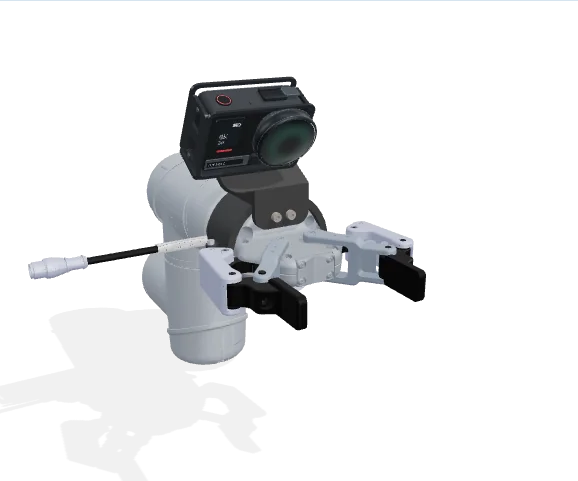
Remove the rubber ring and lens guard. Fit the Ultra Wide Lens, turn it 45° clockwise, and select Ultra Wide Lens in the camera settings.
Activate a new camera with the Insta360 mobile app before starting assembly.
3. Connect the devices
The gripper connects to the UR controller; the host accesses it over Ethernet.
Configure the UR controller and control computer with IP addresses that can reach each other. See UR setup for control modes and gripper connection settings.
Open the browser on the control computer, or use SSH forwarding to operate from another computer.
4. Install the software
Continue with RoboAPI installation, check the camera view in the local console, then complete coordinate calibration.
If the camera is not detected, see camera troubleshooting. For another arm, see Connect new hardware.